
DropToDo
Create timed reminders by dragging down from the menu bar
For macOS 14.0+ · Apple Silicon & Intel
Create timed reminders by dragging down from the menu bar
For macOS 14.0+ · Apple Silicon & Intel
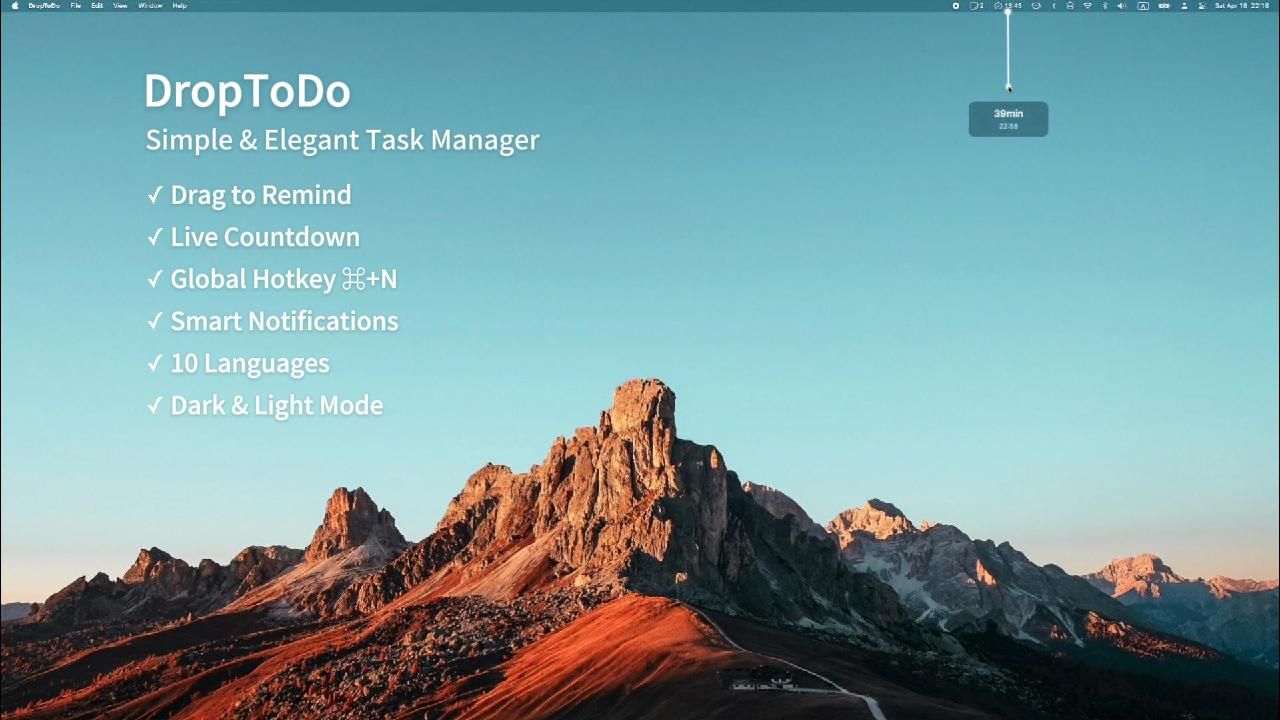
Hold the menu bar icon and drag down to set a timer. Release, type your task, and press Enter. That's it.
Hold the menu bar icon and drag down. Distance determines the reminder time — up to 48 hours.
A glowing line connects the icon to your cursor, with a frosted-glass time card showing the countdown.
Press ⌘N anytime to instantly bring up the quick-input window.
System notifications with configurable advance alerts and overdue summaries.
Click the menu bar icon to view your tasks with search, sort, and one-click completion.
Light / Dark / System themes. 10 languages. Dock icon, badge count, and more.
Hold the menu bar icon and drag downward to select your desired reminder time.
Release the mouse. An elegant input field appears — type your to-do and press Enter.
A system notification alerts you when the time arrives. Never miss a thing.